Print labels
Print labels is how you put a barcode on your products and your shelves, so a scanner finds them at the counter,
when receiving, and when gathering an order. A product label says its name, its price in the store and its barcode; a
shelf label says the shelf in large letters and its barcode.
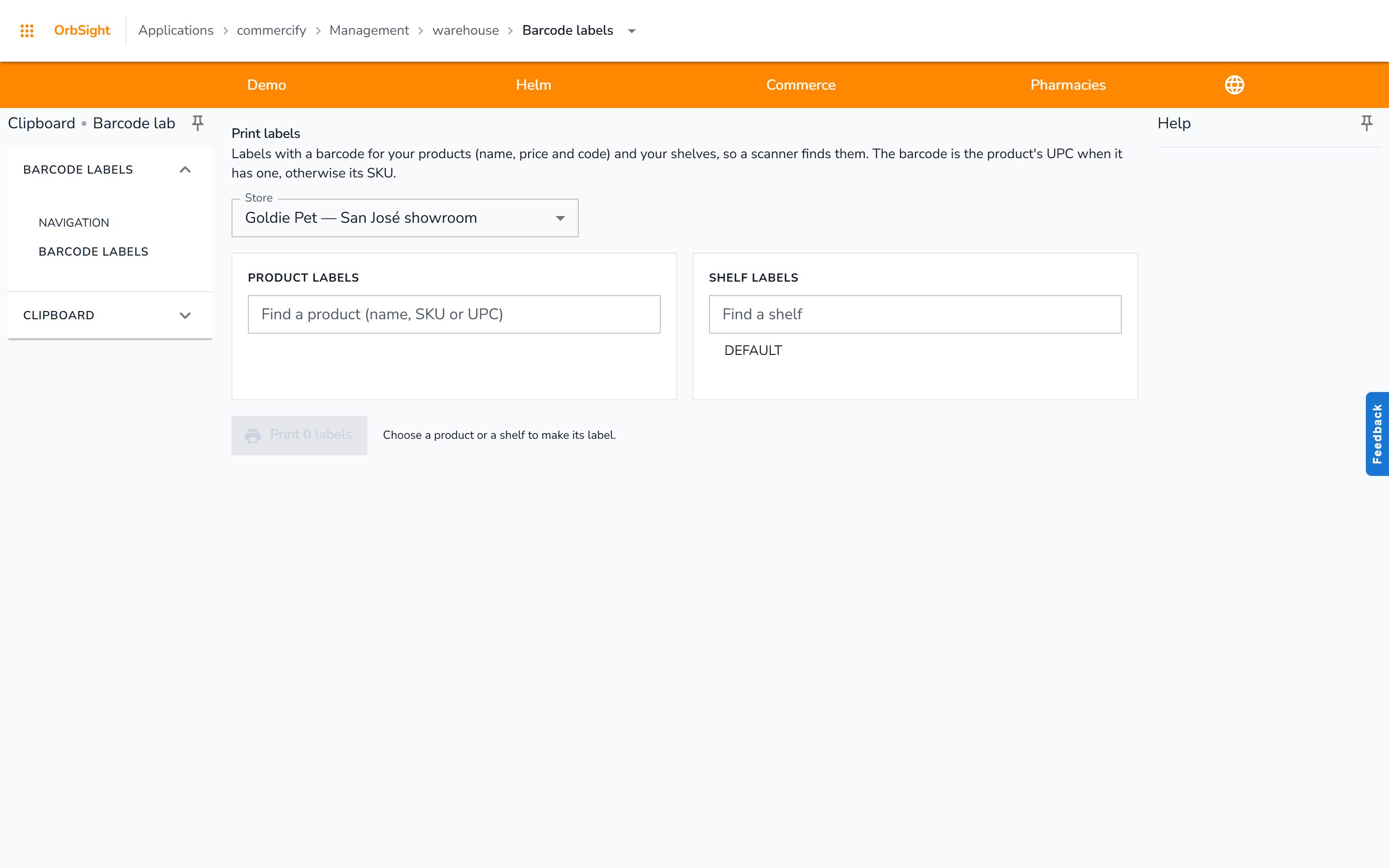
Make labels
Choose the store (its prices go on the labels). Under Product labels, find a product by name, SKU or UPC and choose
it; under Shelf labels, choose a shelf. Each one you choose gets one label; use − and + for more or fewer.
The barcode is the products UPC when it has one, otherwise its SKU; a shelfs barcode is its name. The app makes no new
codes. To try a printed label, scan it on the Barcode reader screen: it says which product has the code.
Print opens your browsers print dialog with the labels, 50 × 25 mm each, laid out on the page your printer uses.
Print on label paper, or on plain paper and cut. Nothing is saved: printing again makes the same labels
Imprimir etiquetas
Cómo poner un código de barras en sus productos y estantes para que un lector los encuentre: la etiqueta de un producto con su nombre, su precio y su UPC, y la de un estante.